
How to Enable Two-Factor Authentication (2FA) for Seniors on Gmail, WhatsApp, Facebook 2026 – Simple Guide
Enable 2FA in 2 minutes – Double safety for seniors from hackers in 2026
Are you worried about hackers stealing your Gmail or Facebook account? For seniors over 65, this fear is very real. In 2026, over 40% of online hacking victims are seniors in India and USA. But there is one simple setting that can stop 99% of hackers – Two-Factor Authentication or 2FA. Think of it as a double lock for your house. Even if someone has your key (password), they need a second key (code on your phone) to enter. This guide shows you how to enable 2FA in just 2 minutes, no tech knowledge needed.
- What is Two-Factor Authentication (2FA) in Simple Terms?
- Why Seniors Must Enable 2FA in 2026?
- Part 1: How to Enable 2FA on Gmail for Seniors (Most Important)
- Part 2: How to Enable 2FA on WhatsApp for Seniors (Stop OTP Fraud)
- Part 3: How to Enable 2FA on Facebook for Seniors
- Common Mistakes Seniors Must Avoid With 2FA
- Final Safety Checklist for Seniors – Do This Today
- Frequently Asked Questions (FAQ) – 2FA for Seniors
What is Two-Factor Authentication (2FA) in Simple Terms?
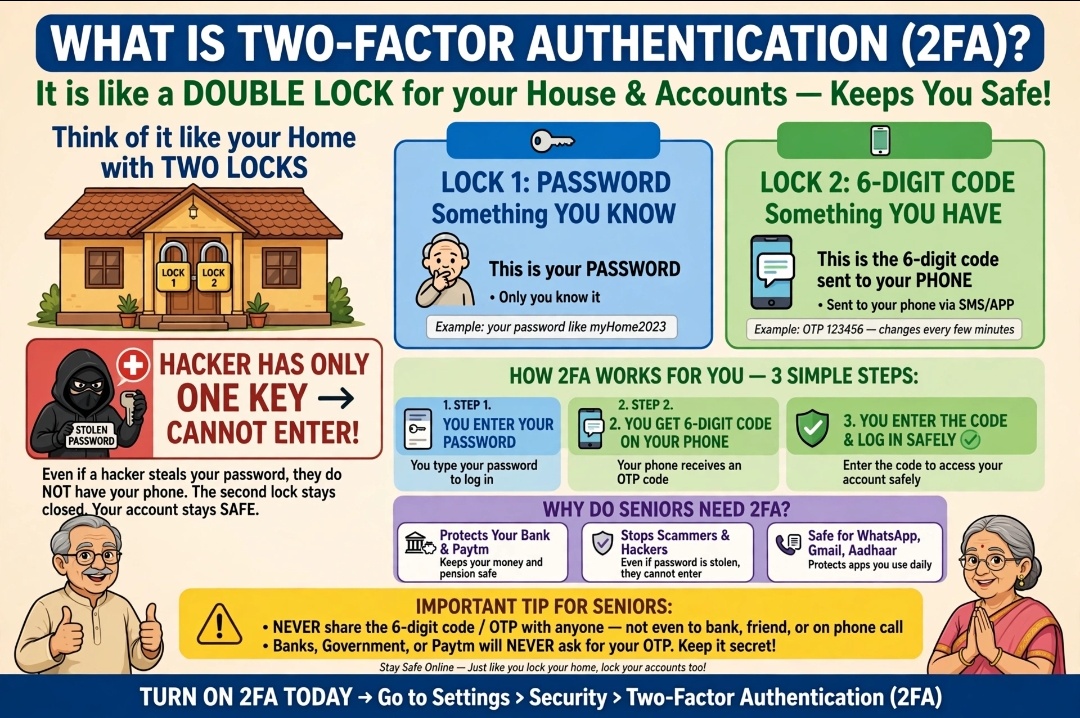
Normally you login with only password – that’s one factor. With 2FA, you need two things:
- Your password (something you know)
- A 6-digit code sent to your phone (something you have)
So even if a hacker knows your password from a data leak, they cannot login without your phone. For seniors, this is the most important safety step in 2026.
Why Seniors Must Enable 2FA in 2026?
- Gmail holds bank receipts, pension details, SCSS statements. If hacked, money can be lost.
- WhatsApp has family chats – hackers use your account to ask money from your children.
- Facebook has photos – hackers clone account and ask money.
- USA Reports: Seniors with 2FA are 99% safer than without. FTC says 2FA stops 96% of bulk phishing attacks.
- India Cyber Crime: 70% of senior fraud starts with email hack.
Part 1: How to Enable 2FA on Gmail for Seniors (Most Important)
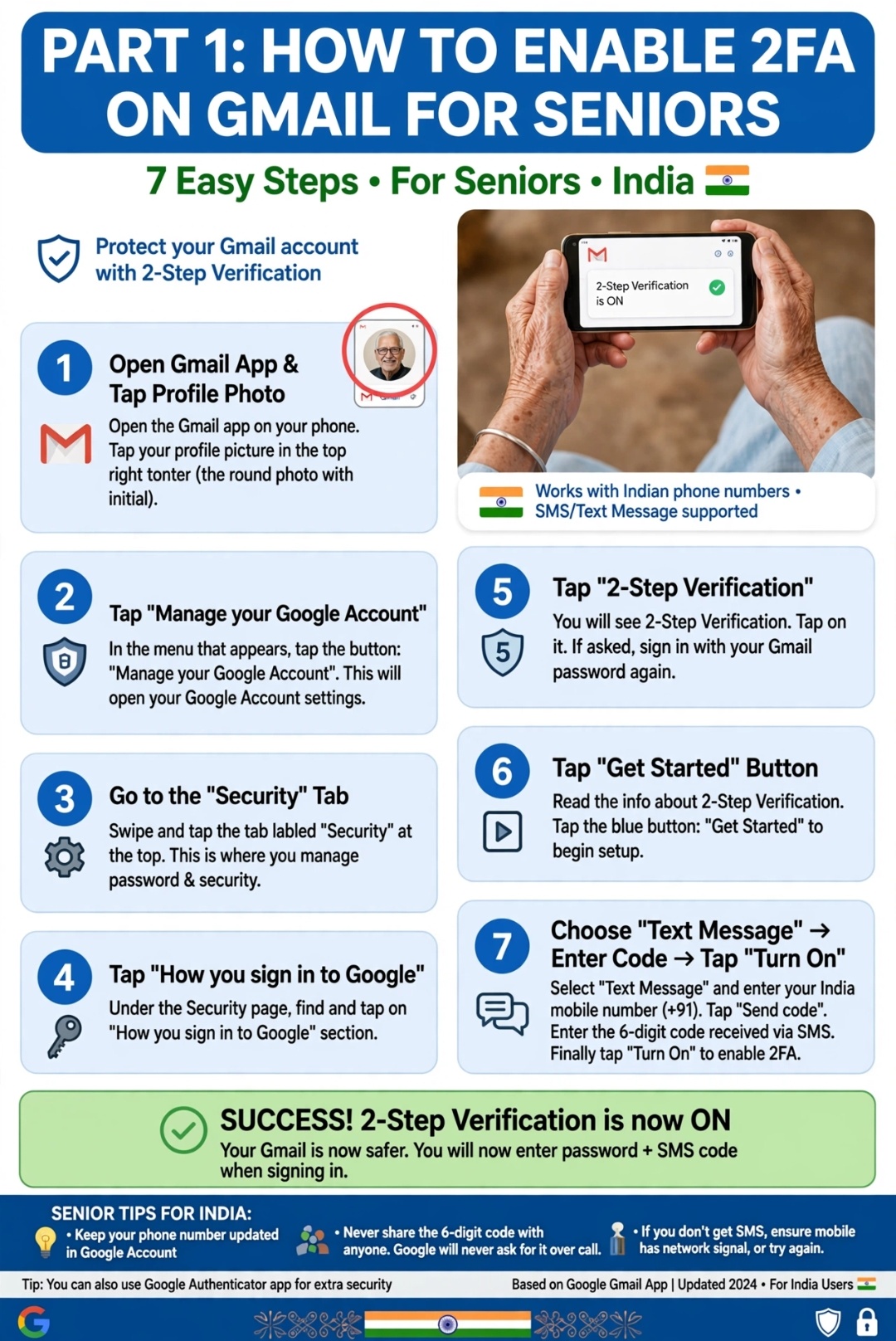
Gmail is most important because bank OTPs come here.
- Open Gmail app on your phone. Click your profile photo on top right corner.
- Click “Manage your Google Account”.
- Click “Security” tab on top menu.
- Scroll to “How you sign in to Google” > Click “2-Step Verification”.
- Google will ask password – Enter your Gmail password.
- Click “Get Started” > Choose “Text Message” > Enter your mobile number (same number you use).
- Google sends 6-digit code via SMS. Enter code and click “Turn On”.
Done! Now whenever someone tries to login your Gmail from new device, you get SMS alert. Your account is safe.
Important Tip: After turning ON, click “Backup codes” and download 10 codes. Print them on paper and keep in locker. If you lose phone, these codes help you login.
Part 2: How to Enable 2FA on WhatsApp for Seniors (Stop OTP Fraud)
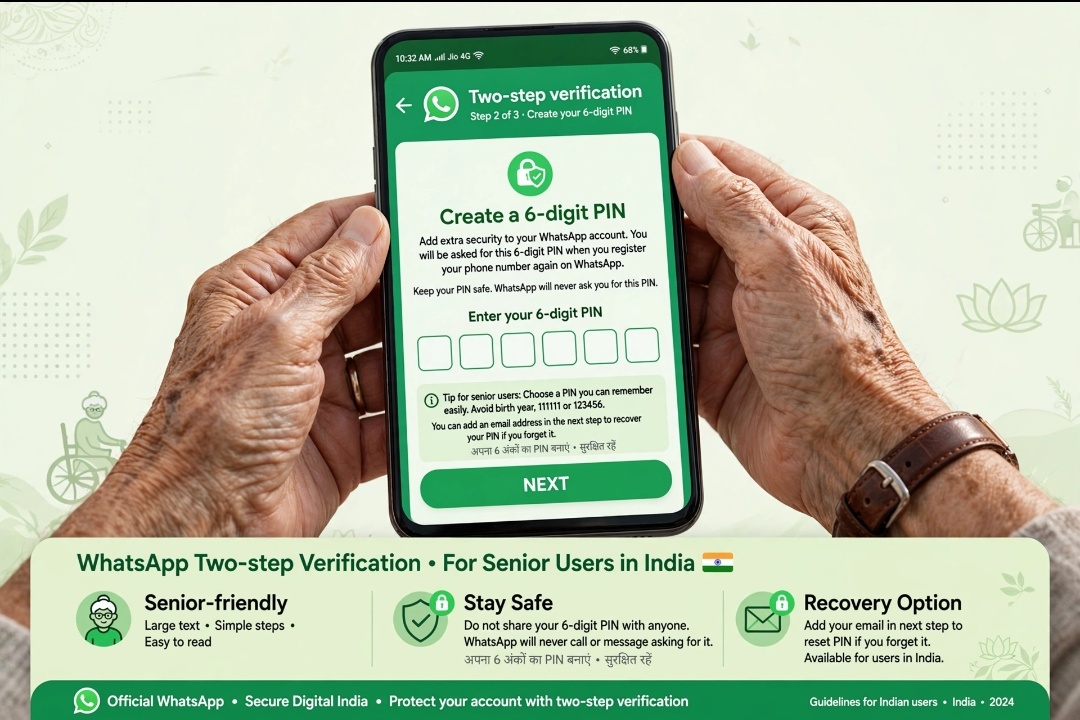
WhatsApp 2FA is called Two-Step Verification. This stops OTP fraud that targets seniors.
- Open WhatsApp > Click 3 dots on top right > Click Settings.
- Click “Account” > Click “Two-step verification”.
- Click “Enable” or “Turn On”.
- Create 6-digit PIN. Use easy number you remember like birth year + house number last 2 digits. Example: If born 1956 and house 24, PIN is 195624.
- Add email address for recovery. Use your Gmail address. This helps if you forget PIN.
- Click Done.
Now WhatsApp will ask PIN sometimes to help you remember. Never share this PIN with anyone, even your son. No one from WhatsApp will ever ask this PIN.
Part 3: How to Enable 2FA on Facebook for Seniors
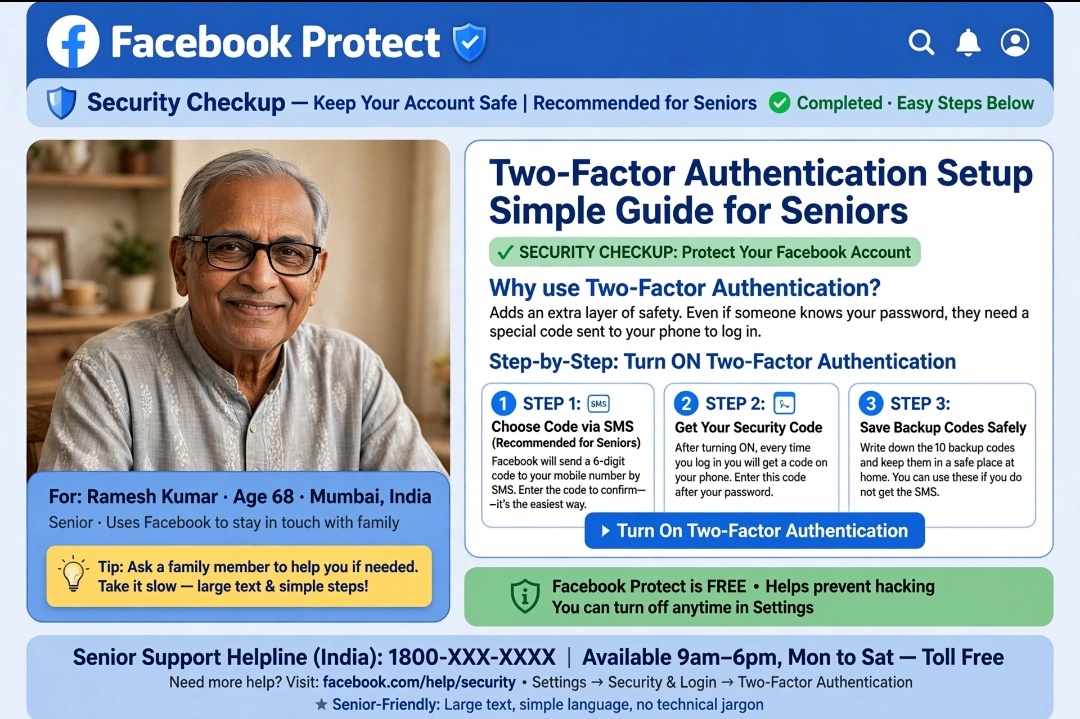
- Open Facebook app > Click 3 lines (Menu) on bottom right corner.
- Click Settings & Privacy > Settings.
- Click “Password and Security”.
- Click “Use two-factor authentication”.
- Choose “Text Message (SMS)” > Enter your phone number.
- Enter 6-digit code you receive via SMS and click Done.
Facebook will now ask code when someone tries to login from new phone. Your photos and account are safe.
Common Mistakes Seniors Must Avoid With 2FA
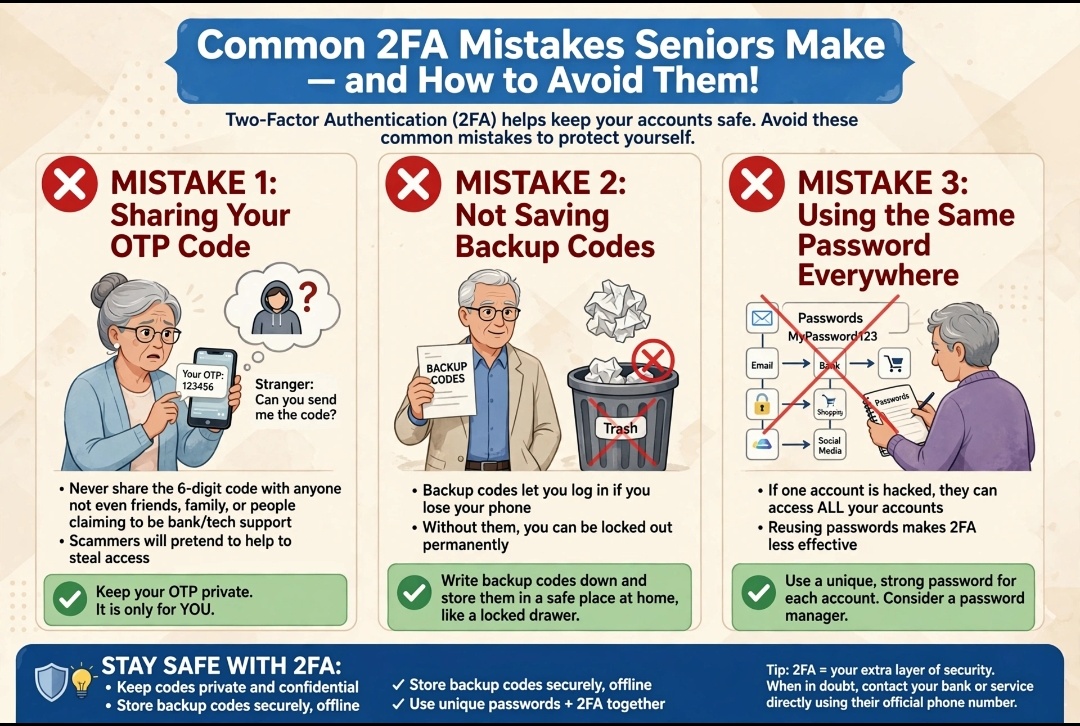
- Never share 6-digit 2FA code with anyone, even if they say they are from Google, Facebook or bank. Real companies NEVER ask for 2FA code on phone call.
- If someone calls saying “Your account hacked, tell code to fix” – Hang up immediately. It’s 100% scam.
- Don’t turn off 2FA because it asks code every time. It’s your safety shield. You can click “Don’t ask again on this device” on your own phone.
- Don’t use same PIN for all apps. Use different but easy to remember.
Final Safety Checklist for Seniors – Do This Today
- ✅ Gmail 2FA ON – Most Important
- ✅ WhatsApp Two-step verification ON
- ✅ Facebook 2FA ON
- ✅ Backup codes printed and kept safe in locker
- ✅ Family members informed about 2FA
You are now 99% safe from hackers! Share this guide with your senior friends in WhatsApp group.
📚 Also Read – Must Read for Senior Safety:
Frequently Asked Questions (FAQ) – 2FA for Seniors
Q1. What if I lose my phone with 2FA enabled?
Don’t worry. Use your backup codes printed on paper. Or login with recovery email you added in WhatsApp. For Gmail, you can use “Try another way” and Google will verify via recovery email. Always keep backup codes in locker.
Q2. Will 2FA ask code every time I open Gmail?
No. On your own phone, after first time you can click “Don’t ask again on this device”. It will only ask when someone tries from new phone or computer. So no daily trouble.
Q3. Is 2FA free for seniors?
Yes, 100% free. Gmail, WhatsApp, Facebook 2FA is free forever. No charge. SMS code is also free.
Q4. I am 75, not tech savvy, can I still enable 2FA?
Yes, very easy. Just follow 7 steps for Gmail above. If confused, ask your son or grandson to help for 2 minutes. Once enabled, it works automatically. No need to do daily.
Q5. Can hackers bypass 2FA?
Very difficult. With SMS 2FA, 99% safe. For extra safety, use Authenticator app later. But SMS 2FA is enough for seniors and stops 99% attacks.
Q6. What is difference between OTP and 2FA PIN?
OTP is one-time code sent when you login. 2FA PIN is your own 6-digit permanent PIN you create for WhatsApp extra safety. OTP changes each time, PIN is same you remember.
Stay Safe! If you found this guide helpful, please share with 5 senior friends on WhatsApp.